
Sign PDF online
Sign PDF online without printing or uploading your document. Type, draw, or import a signature, then download a new copy.
- 1Document
- 2Signature
- 3Download
Drop your PDF here
PDF up to 25 MB · Up to 100 pages
Two fictional pages. No personal document needed.
Your PDF and signature stay on this device.
A little less printing. A lot less hassle.
Open a PDF, add your signature, and save a new copy. Your original stays untouched.
Document content, names, and signature images are not included in usage events. Closing this page clears your editing session.
This tool lets you sign PDF online with a visible signature. It does not provide a certificate-based digital signature, identity verification, or an audit trail. Follow your recipient’s signing requirements.
How to sign PDF online
Three steps, with your document staying on your device.
Open your PDF
Choose a document from your device. Preview its pages and find the signature line.
Place your signature
Type your name, draw by hand, or import a PNG or JPG. Move and resize it to fit, then add it to other pages if needed.
Download a new copy
Save a PDF with your visible signature included. Check the downloaded copy before sharing it.
A signature in place. A PDF ready to save.
See the result when you sign PDF online: our two-page practice document, before and after adding a typed signature. The exported copy preserves the original page content.
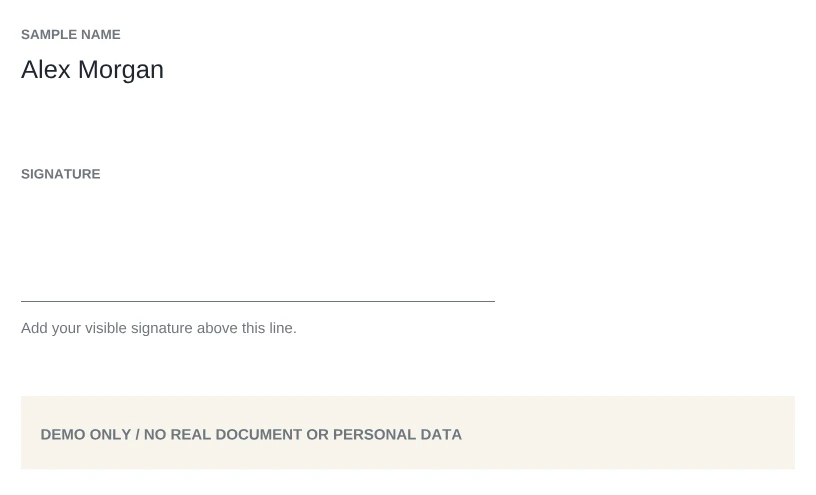
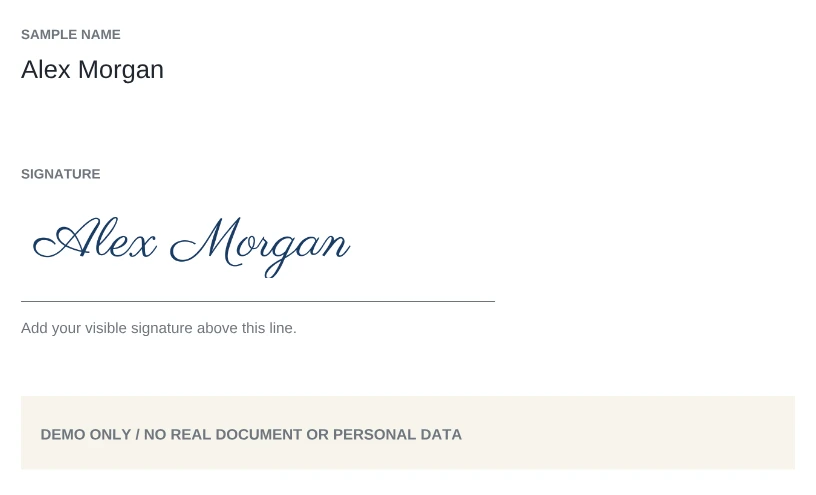
Actual PDF export · Fictional name and document · Signature area shown
Practice first: open the sample, add your own signature, and download a new copy. Loading it will ask before replacing a document with placed signatures.
Choose the signature that fits your workflow
Type, draw, or import an image to add a signature to your PDF. You can move, resize, and reuse the result on other pages. Choose a method your recipient accepts.

Type your name
To sign PDF online with a typed name, enter your name or initials and compare the handwriting previews. Choose a style that stays readable at the size you need.
For a cleaner result
Use the spelling you need on the document. Keep the signature readable at its final size.

Draw by hand
Use a mouse, finger, or pen to make your own mark. On a phone, draw in the signature area before placing it on the page.
For a cleaner result
Use the large drawing canvas and undo the last stroke to correct a letter. The guide line is for drawing only and is not added to your PDF.

Import a signature image
Already have a signature? Choose a PNG or JPG. A transparent PNG usually blends most easily into a document.
For a cleaner result
Crop closely around the signature. For a plain white background, try the editor’s Remove white background option.
What this PDF signing tool supports
Before you sign PDF online, check the file requirements below. Use a standard or scanned document you are authorized to edit.
| File or feature | Supported behavior |
|---|---|
| PDF files | Standard and scanned PDFs up to 25 MB and 100 pages. Scans remain images; this tool does not add OCR. |
| Signature images | PNG or JPG up to 10 MB and 24 megapixels. Type and draw modes do not require an image file. |
| Placement and editing | Up to 100 signatures per document. Move, resize, duplicate, delete, and undo changes. Switch pages to add more. |
| Desktop and mobile | Use a modern browser with JavaScript enabled. Draw with a pointer or touch; use the position controls for fine adjustments. |
| Downloaded PDF | A separate PDF with visible signatures, without a watermark. Original pages are not converted into new full-page images. |
| Files to prepare elsewhere | Password-protected PDFs, dynamic XFA forms, and PDFs with an existing certificate signature are not supported. |
This tool does not fill text fields, request signatures from others, or provide certificate signing or an audit trail. Complex PDFs may need another editor; check the preview and downloaded copy.
From your device, back to your device
When you sign PDF online here, the file is processed in your browser tab. The editor does not upload your document, name, or signature to our servers.
Choose locally
Your browser reads the file you select. The PDF content stays in the editing session.
Preview and place
Pages render and signatures are added on your device. No server-side document conversion is needed.
Save a new copy
The browser prepares your PDF download. Closing the page clears the editing session; save your work first.
The website still loads its normal resources and may collect general usage events. Those events do not include document content, file names, typed names, or signature images.
For the places that need your visible signature
Need to sign PDF online for a form, an acknowledgment, or a scanned document? These examples show where to place your signature. Confirm the recipient accepts a visible signature before sending.
Application and registration forms
Find the applicant signature line, reduce the signature to fit the box, and check that nearby instructions stay readable.
Internal acknowledgments
Place a signature in the approval area of a PDF your team provides. Use your organization’s required process if it needs identity checks or an audit record.
Service confirmations
Add your mark to an acknowledgment or completion sheet. Follow the recipient’s signing requirements before returning it.
Documents with several signature areas
Keep the same signature ready, switch pages, and add it where needed. Review every page before downloading.
Scanned paper documents
Add a visible signature to a paper document already scanned to PDF. Check that the signature stays clear and does not cover the scanned text.
PDFs received on your phone
You can sign PDF online on your phone without a printer. Open the received file in your browser, draw with a finger, and fine-tune its position before downloading a copy to return.
Signing a PDF online: common questions
Can I sign PDF online without uploading my file?
Yes. PDF rendering, signature creation, and export happen in your browser. The editor does not send the document or signature to our servers. The site may collect general usage events, without document content, file names, or signature images.
Is the PDF signing tool free to use?
Yes. You can sign PDF online for free, without an account. The downloaded PDF has no watermark.
Is this a certificate-based digital signature?
No. This tool adds a visible signature to PDF pages. It does not issue a signing certificate, verify identity, collect recipient consent, or create an audit trail. Use the signing method required by the recipient.
Which PDFs can I use, and why will a file not open?
Use standard or scanned PDFs up to 25 MB and 100 pages. Password-protected files, dynamic XFA forms, and PDFs with existing certificate signatures are not supported. If a file will not open, check its size and page count, then ask the provider for a standard, unencrypted or unsigned copy you are authorized to edit. Some complex PDFs may need another editor.
Can I add a signature to several pages on my phone?
Yes. You can sign PDF online across several pages of the same document. Switch to each page and add your signature where needed. On a phone, use the size and position controls for small adjustments.
How do I change the signature size or position?
Select the placed signature, drag it into position, and use the corner handle to resize it. On a phone, the size and position controls below the preview can be easier for small adjustments.
How do I remove a white box around my signature?
Choose Image, import the PNG or JPG, then enable Remove white background. This works best with plain white paper. If the paper is colored or uneven, clean it with Remove BG first.
What should I check after I sign PDF online?
Your original file stays unchanged. Download creates a separate PDF without turning every page into an image. Open the new copy in your usual reader and check every page, the signature’s position and clarity, and nearby text. Keep the original and follow the recipient’s submission instructions.